
Disclaimer
This article is not about a Cloud Connector feature or issue but a SharePoint limitation in filtering. It's for information only and we do not guarantee that the referenced approach works, nor do we support it in case any issues occur.
SharePoint filtering limitations
Unfortunately, The SharePoint web user interface doesn’t allow us to set a view filter that filters out a folder and all its sub-items.
If you define a view with the following filter, you will by default no longer see the Documents folder and its contained items in the UI.
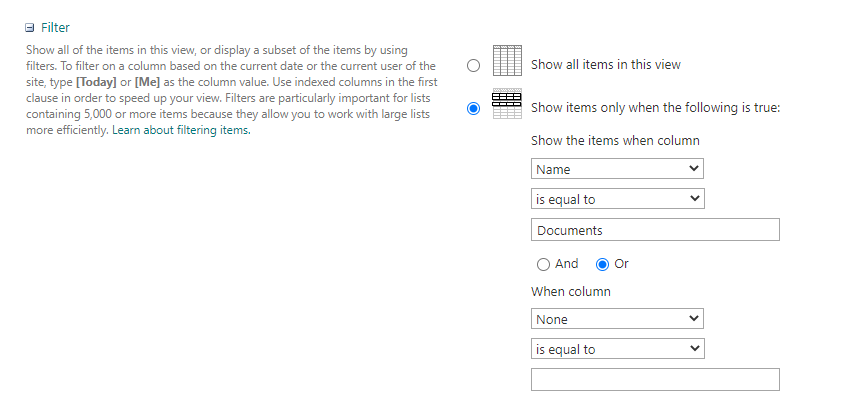
However, this is only the case because another default setting in the view prevents you from being able to navigate to the items in the folder:

If you change this to “Show all items without folders”, you will recognize that the items inside the “Documents” folder are shown. SharePoint also returns the sub-items to the Cloud Connector so that it seems as if the Cloud Connector would ignore the defined filter (which is not the case).
Possible solution (at your own risk)
SharePoint unfortunately does not offer a possibility to filter by item path and/or with wildcards out of the box. However, there seems to be a solution by creating a view via PowerShell in which filtering is based on the FolderReleativeURL. There is a slightly different example of this in the following article, which is not tested/verified by us: https://www.sharepointdiary.com/2018/08/sharepoint-online-filter-list-view-to-show-files-from-specific-folder-using-powershell.html
You could use this template to create a view that instead of showing the items from a specific folder, filters them out. The view definition is based on CAML, which is quite well documented.
Call for feedback
If you tested this implemented this solution with success or found another way to implement this kind of filtering on SharePoint, it would be great if you could give a heads-up so that we can extend this article to better help our customers.